Search

Custom Search

Monday, June 13, 2011

Auto Login For Asianet Dataline(ADL-METTLE Wire)

Asianet Dataline provides free downloads @ night from 2AM to 6Am or 8Am.
Using this free download time needs one to login @ 2am and to disconnect @ the end of the free time.it will be useful if there is anything which can automate the login. For this there are many methods and the easiest way is by using secure login addon in firefox

Using an Addon in firefox we can automate the login for ADL.
First save the username and password in firefox.(enable password saving in
frefox from Tools>>options>>security>>tick remember password)

install SECURE Login Addon for firefox from https://addons.mozilla.org/en-
US/firefox/addon/4429

Then after restarting firfox enter “about:config” in address bar
set the value of “extensions.secureLogin@blueimp.net.autoLogin” to true

In firefox go to Tools>>Options>>main set “show my Home page” in when
firefox Starts” and set home page in firefox to Google or Yahoo

Now For Automating the night Downloads

Create a task in task scheduler to run firefox @ 2:05AM

Creating task in task scheduler(for creating task,the useraccount must be

password protected, otherwise the task may fail to execute)

Open task Scheduler(All programs>> accessories>>system tools)

Click Create task, set the name and description, Select the Operating system you are using.

auto1

Select Triggers>> New>> Daily, set time and select ENABLED

auto2

Select action>> Browse to C:\Program Files\Mozilla Firefox\firefox.exe

auto3

Select Conditions Untick all the conditions

Select Settings>> Set Run on demand.

auto4

Now Click OK.

Check the task by right clicking the task and select RUN

auto5

After this make sure that you have configured an auto shutdown task at 6/8am, since there is no way to disconnect the internet at a specified time. (create a task with daily action of “c:\windows\system32\shutdown -s -f -t 00″)
If you dont have an auto shutdown task, find some auto shutdown managers from here http://www.mediafire.com/?sharekey=9d33c3daadbd9b4161d4646c62b381cbdd8d1682a17dc4e6597b5d7f10aaff85

Asianet DataLine Auto Login for Windows

Asianet DataLine Auto Login for Windows

Asianet dataline auto login for WindowsAsianet Dataline is one of the top broadband service providers in my state (Kerala). Asianet Dataline (ADL) provides excellent bandwidth when it comes to pre-paid plans with fixed download limits. Every time you connect to the broadband network, ADL requires you to login using a browser. You also need to keep this browser session open. Otherwise ADL automatically disconnects you from the broadband network.
Obviously this is a big hassle. Many times I have accidently closed the browser and right in the middle of a big download, my connection gets terminated. Also most of the time I want the Internet connectivity as soon as I login to my system.

This is where ADL Auto Login comes to the rescue. ADL Auto Login eliminates the need for an open browser session to keep you connected to Asianet broadband. It can be configured to run as soon as you login to Windows. You can also save your login credentials and ADL Auto Login will automatically authenticate you with Asianet servers.

Using ADL Auto Login you can login or logout from Asianet broadband servers at any time. It also displays the connection status in Windows system tray.

Download ADL Auto Login for Windows

Download ADL Auto Login for Windows 1.0

Installing ADL Auto Login for Windows

Download ADL Auto Login zip from the above link and extract the executable to a folder of your choice. Please note that the file Interop.IWshRuntimeLibrary.dll must be present in the same directory as the executable.

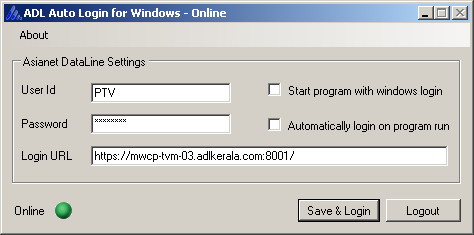
Run the program and configure your settings. Select "Start program with windows login" and "Automatically login on program run". On your next Windows login, you will be automatically logged in to the Asianet broadband.

Asianet DataLine Auto Login for Windows - Screenshot

Please note that the login url given above is only an example. You need to get your login url from the browser by trying to connect to an external Web site.

ADL Auto Login is tested on Windows XP, Windows Vista and Windows 7 and requires .NET framework 2.0 or above.

Feedback & Updates

If you have any comments or suggestions about this program please let me know. Watch this page or my twitter feed for any updates.

Software Disclaimer

This software is provided "as is" and any express or implied warranties, including, but not limited to, the implied warranties of merchantability and fitness for a particular purpose are disclaimed. In no event shall the copyright owner be liable for any direct, indirect, incidental, special, exemplary, or consequential damages however caused.

Asianet Dataline Auto Login(python)

Asianet had migrated to a new system Mettle Wire few months back and here is how you can set up the Auto Login for night downloads.

For this you need the following

First install Python to a location of your choice ( I used C:\login\Python ) Next extract the login script to C:\login. Open the login script with a text editor like Notepad and update the username and password. Do not use Microsoft Word as it may alter the file.

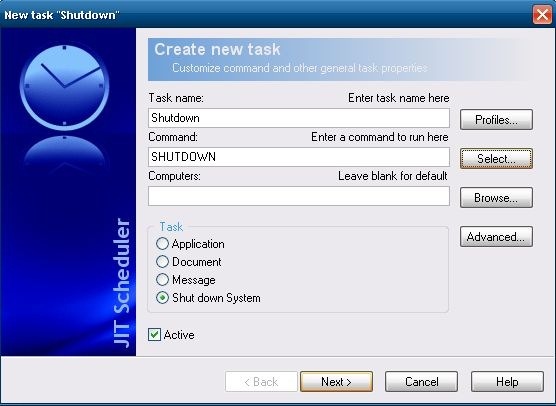
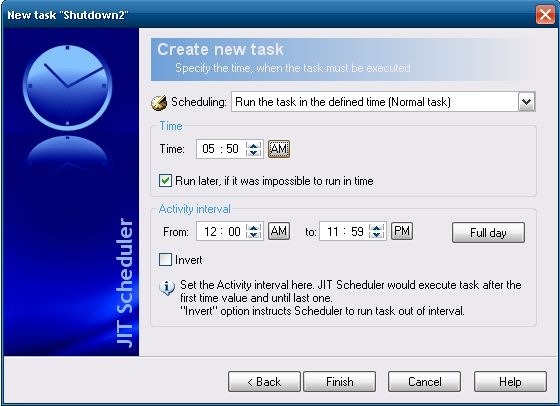
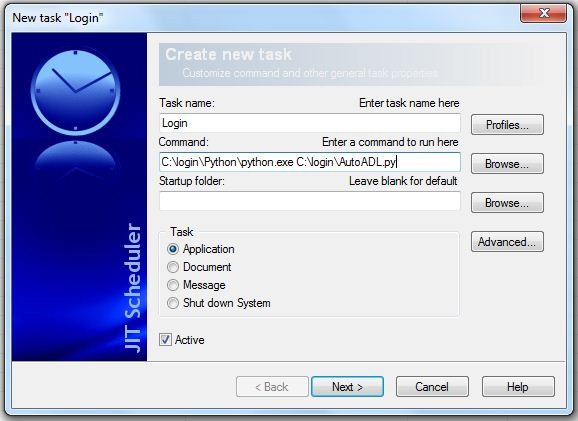
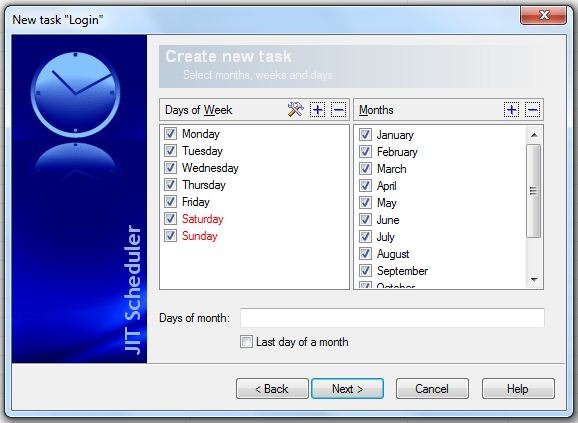
Now open JIT Scheduler and click the ‘New’ task button on top and enter the details as shown in the images below to login automatically at the specified time. Also repeat the process every 5 minutes in case you are automatically logged out by the system.

adl_1 adl_2 adl_3

You may need to update the command in the first image depending on the location you installed Python and where you extracted the login script.

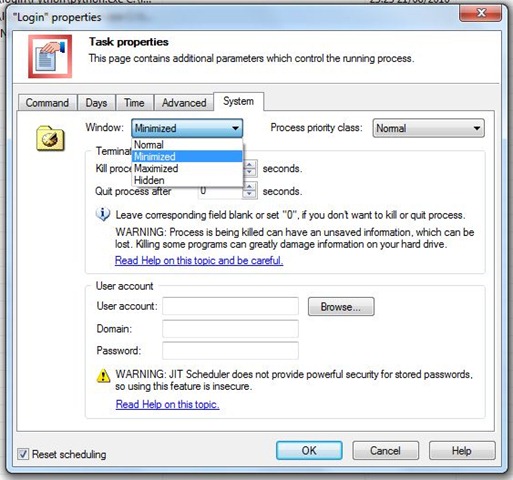
adl_4After creating the task, right click on the task and select ‘Task Properties’ and change the option in Window to Minimized in the System menu as shown in picture so that login script is run in the background.

Now you need to create another task to shutdown the system at 8 AM and can be done as shown below.

adl_5 adl_6

Login Script to automatically connect to your Asianet Dataline Internet connection

Asianet Dataline is an ISP in Kerala and they use a web browser based authentication system to log the user onto their network. One of their most popular plans the - Homenet 475 offers free unlimited downloads from 2AM to 8AM. Now if there was a way to turn on your system at 2AM, automatically login to Asianet and turn your download manager on and then shutdown at 8AM it would have been perfect. The only problem is that the http based authentication system makes it a bit unwieldy to automate. Well not really :-). We have created a bash script to automate this login process.

Features

- Automatically connect to Asianet Dataline without having to sign in via the browser.
- In startup and free mode the script will keep the connection alive.
- The script will automatically reconnect if connection breaks because of a power failure or a line problem.
- In free mode the script will call any related startup and shutdown scripts placed inside the ~/.auto-login/startup and ~/.auto-login/shutdown folders.

Setup Instructions

a) Copy script to your favorite scripts folder.
b) Edit script to update username and password with your Asianet login information.
c) Add script to your startup process. See different ways of using the script below to know more.
d) If you want to start and stop other applications at the time of starting the script then create a folder ~/.auto-login and inside that create sub-folders startup and shutdown. Place other scripts that have to be called during startup and shutdown of this script into the respective folders. Make sure that these scripts have their executable bit set.

Different ways of using the script

1) Add a shortcut to your task bar to launch the script with the parameter "auto". Use this shortcut to start the connection with one click and stop the connection with one click. Remember that the connection will time out if there is no activity. But that should not be a problem because you can connect again with a single click.
2) Add the script to your startup process with parameter "startup". This will keep the script running in the background and the script will keep the connection alive with keep-alive requests.
3) Add the script to your startup process with parameter "free". This will keep the script running in the background and the script will connect only during the free download hours and then it will keep the connection alive with keep-alive requests until the free time ends. When free time ends it will disconnect the connection. In this mode the script will also run any related startup and shutdown scripts placed inside the ~/.auto-login/startup and ~/.auto-login/shutdown folders.

The script is available at http://www.zyxware.com/software/utilities/asianet-auto-login.v.1.0.tar.gz
The latest source can be downloaded from http://github.com/anoopjohn/Asianet-Auto-Login-Script


If you have any problem then mail me shahinmbasheer@gmail.com